

Ayla Dashboard Tutorial
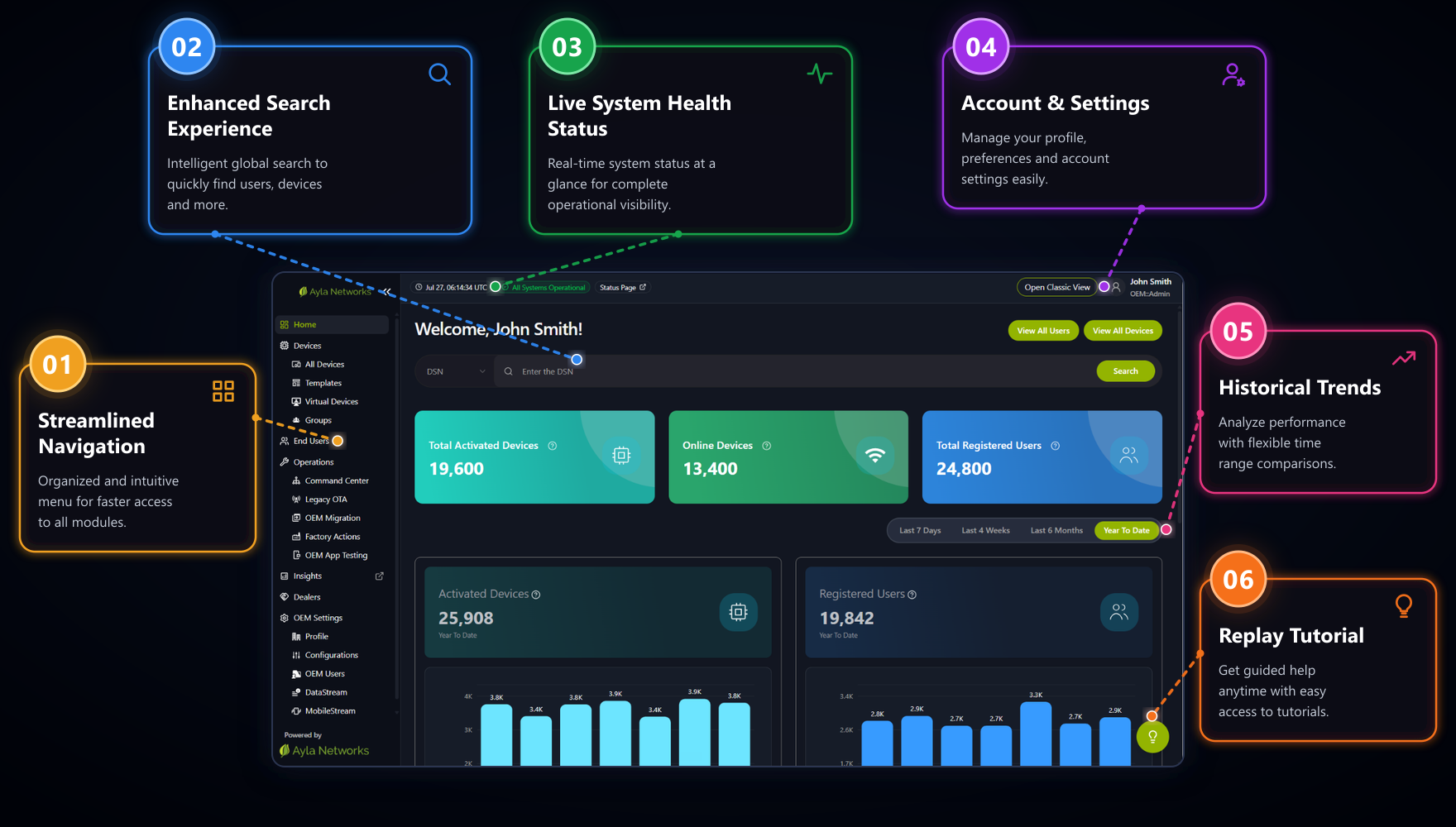
The Ayla dashboard has been redesigned to provide a cleaner, faster, and more intuitive experience. Here's a quick overview of the new layout and key enhancements.
-
Streamlined Navigation
The left navigation menu is organized into logical categories, making it easier to find features and complete common tasks.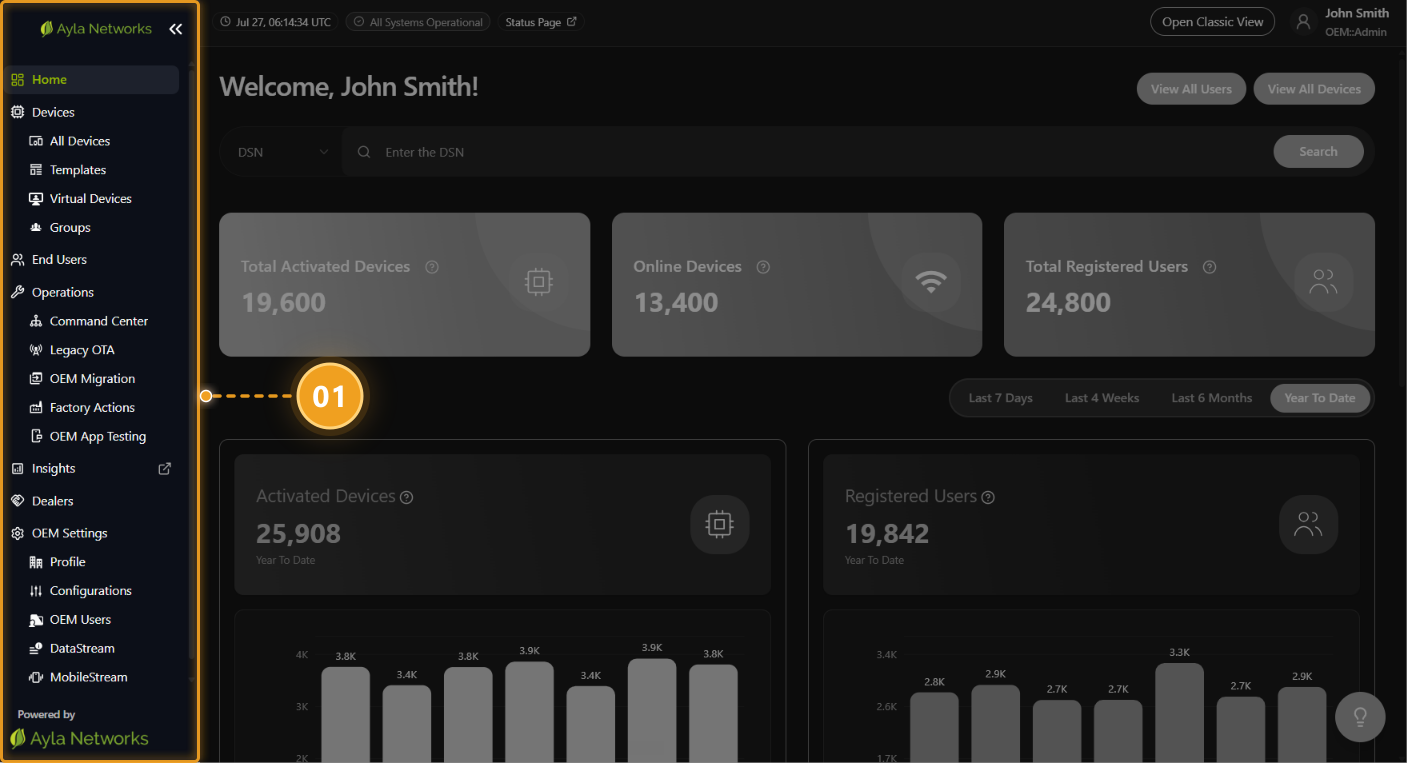
-
Enhanced Search Experience
The global search bar supports targeted searches using DSN or Username. Alternatively, View All Devices or View All Users can be selected to browse the complete device/user list.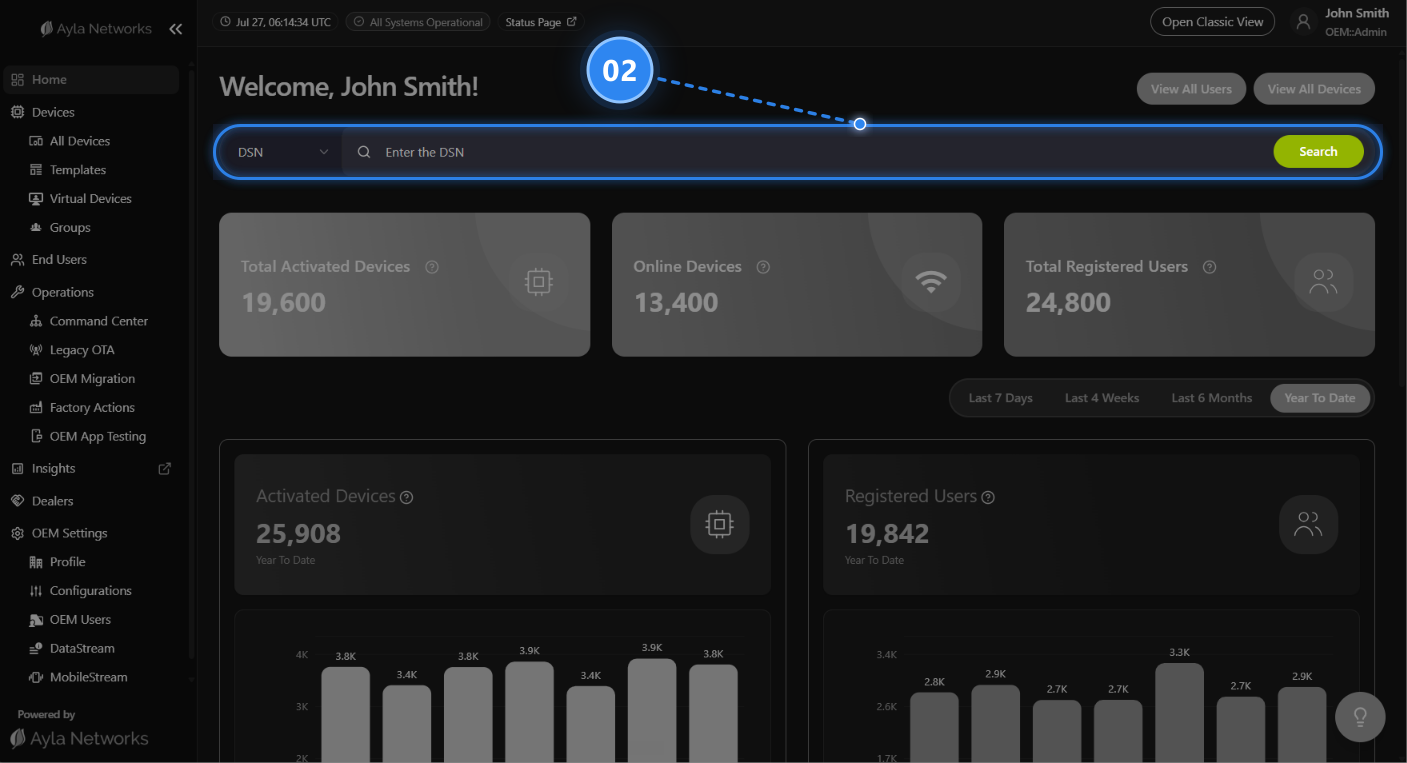
-
Live System Health Status
The status indicator displays the real-time health of the Ayla Cloud. Selecting the Status Page link opens the system status page in a new browser tab.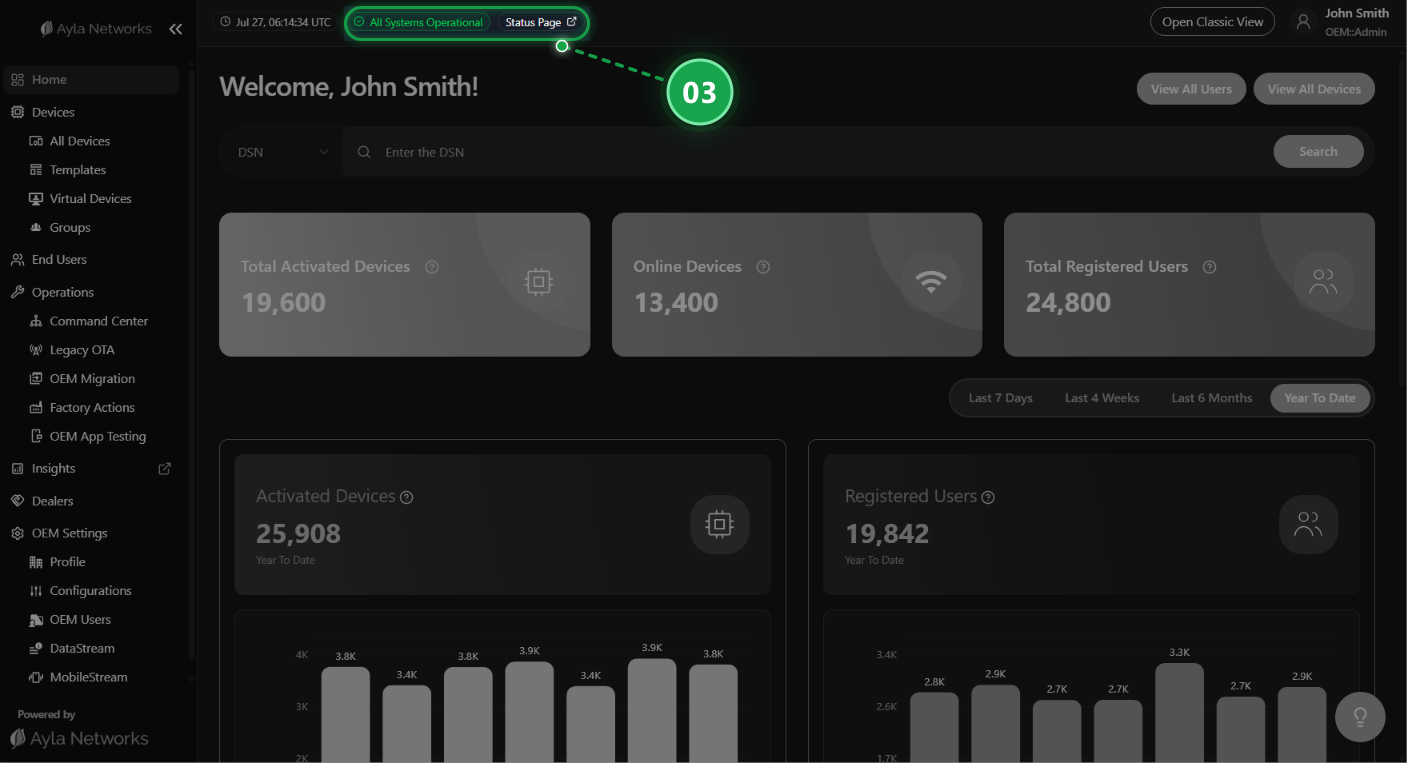
-
Historical Trends
View historical metrics across multiple time ranges, including Last 7 Days, Last 4 Weeks, Last 6 Months, or Year-to-Date to identify operational trends.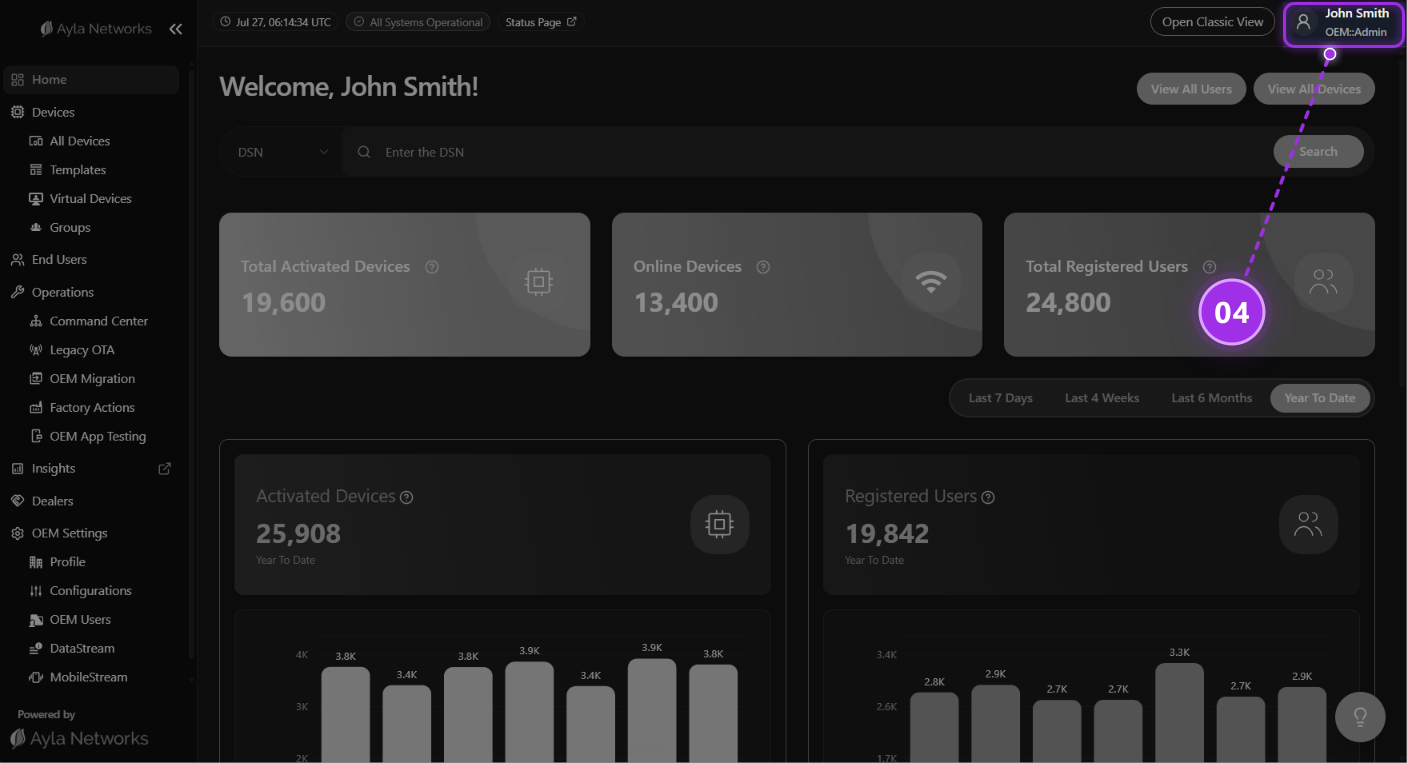
-
Account & Settings
The dropdown menu on top right provides access to account management, system preferences, product documentation, and Ayla Support ticket submission.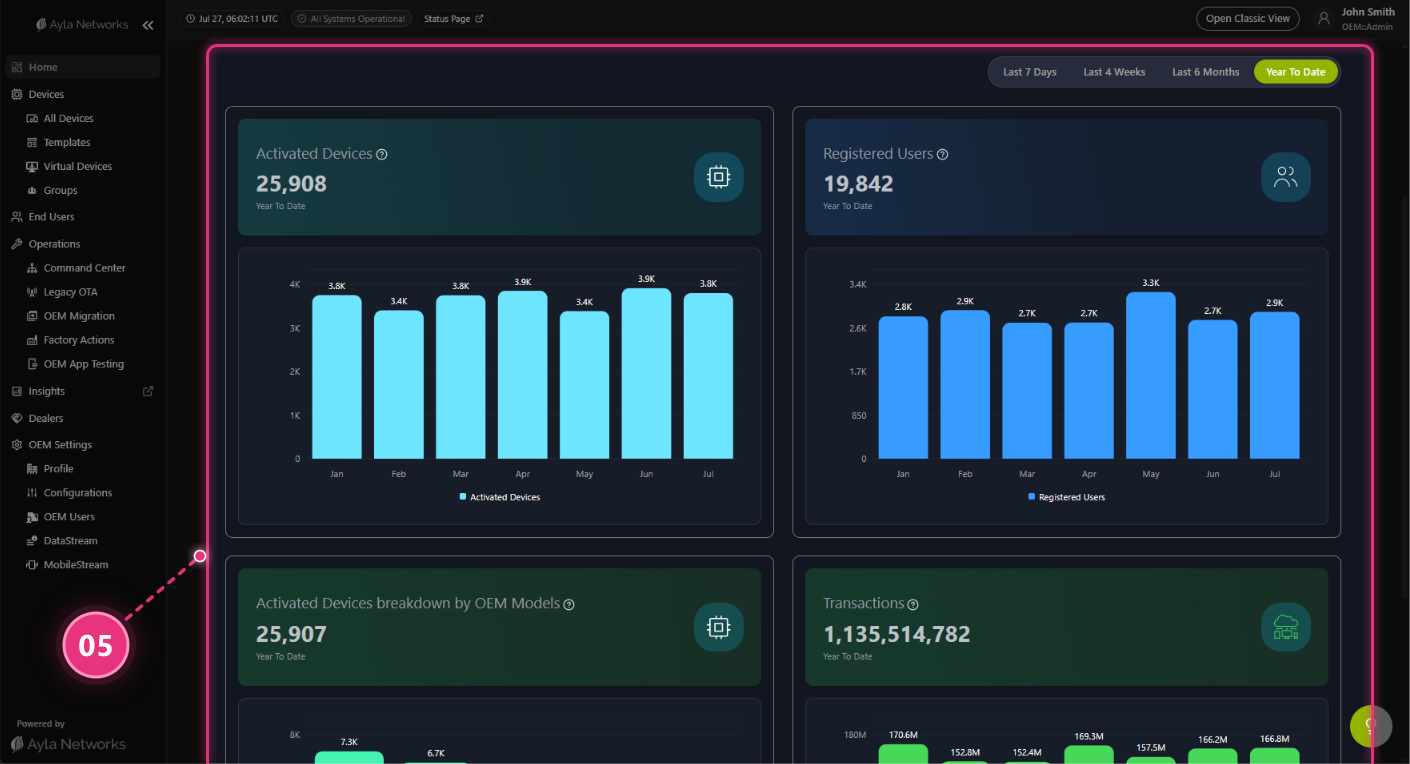
-
Replay Tutorial
Then icon provides access to this tutorial at any time.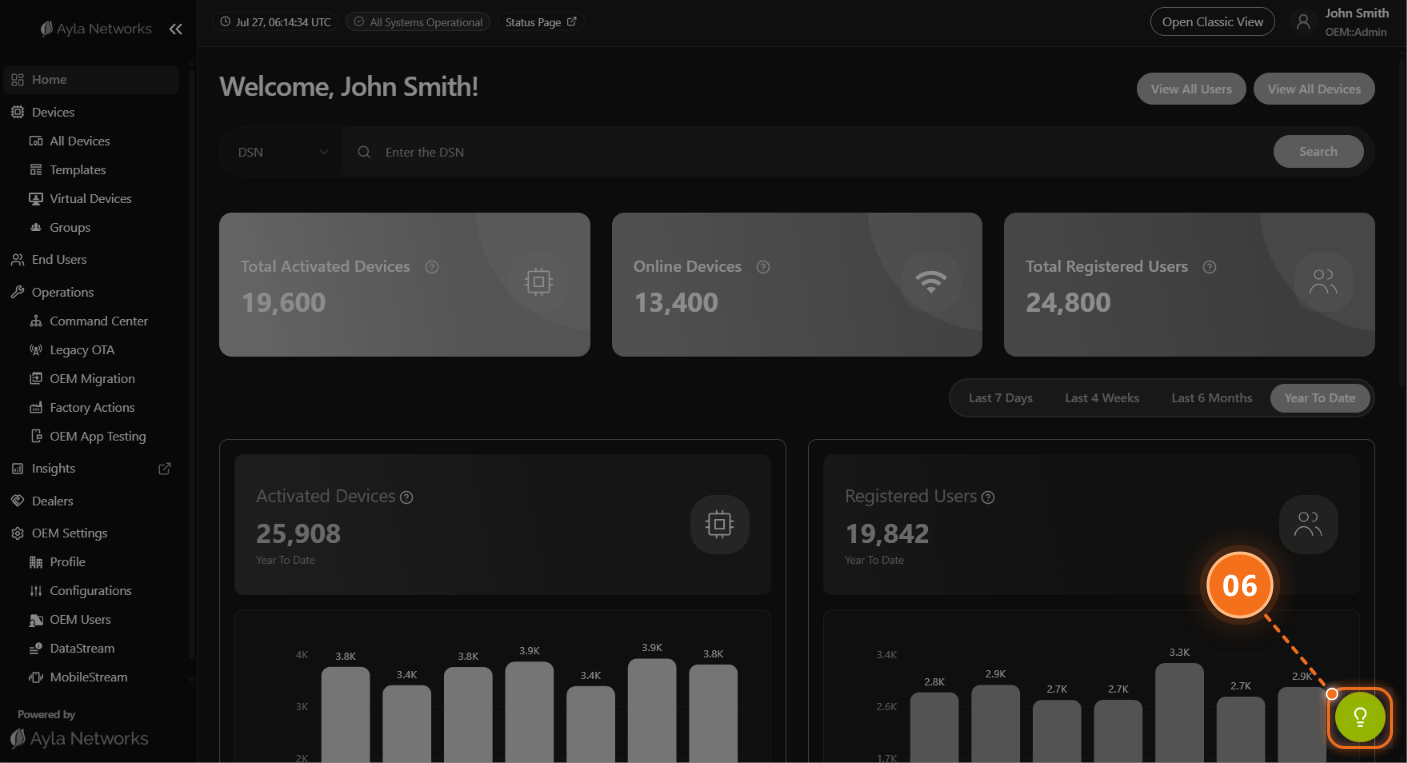
New Device Search Features
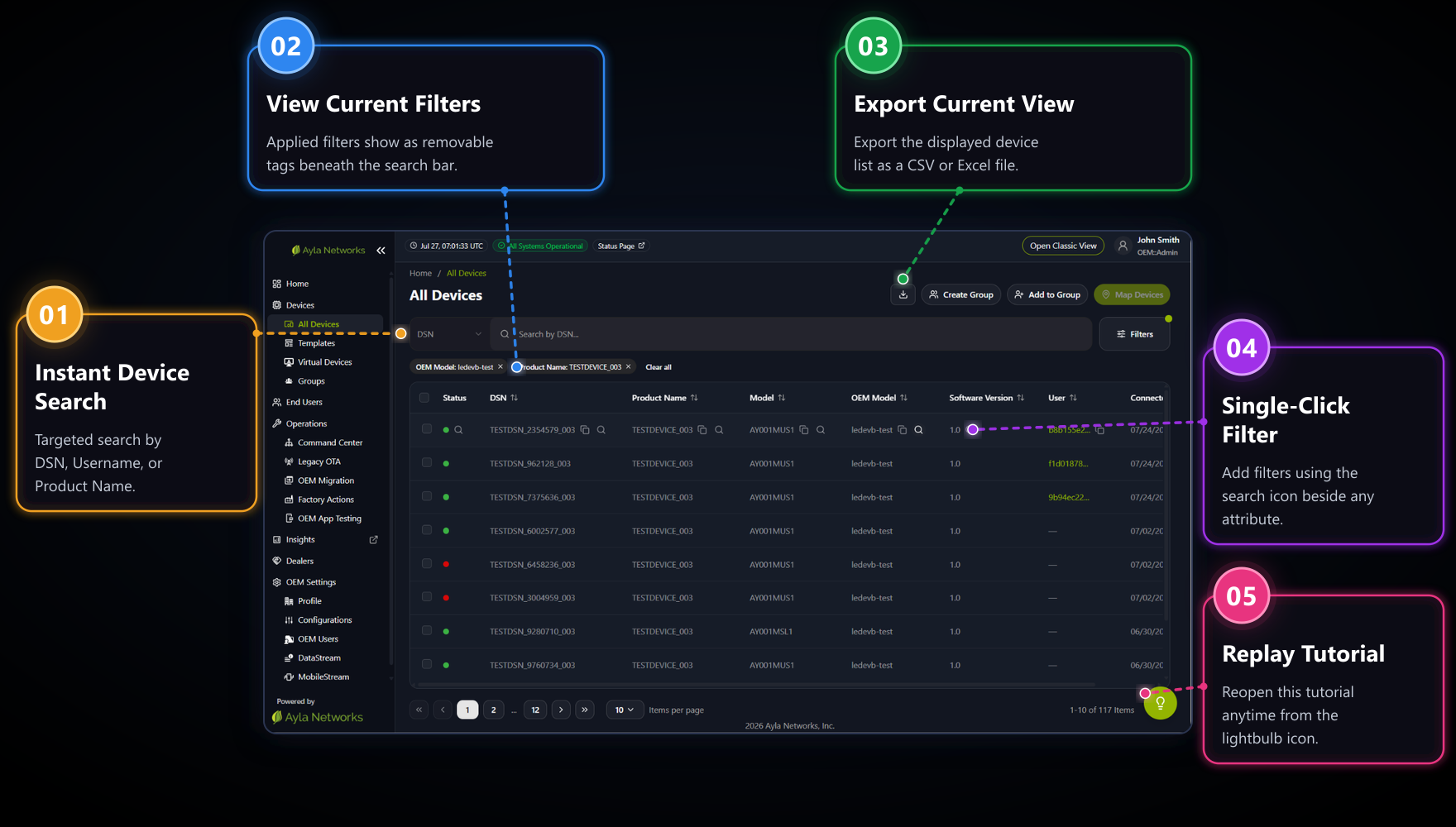
The device search experience has been enhanced with single-click filtering, targeted search options, and export capabilities. Below is a quick overview of the new features.
-
Instant Device Search
The global search bar supports targeted searches using DSN, Username, or Product Name.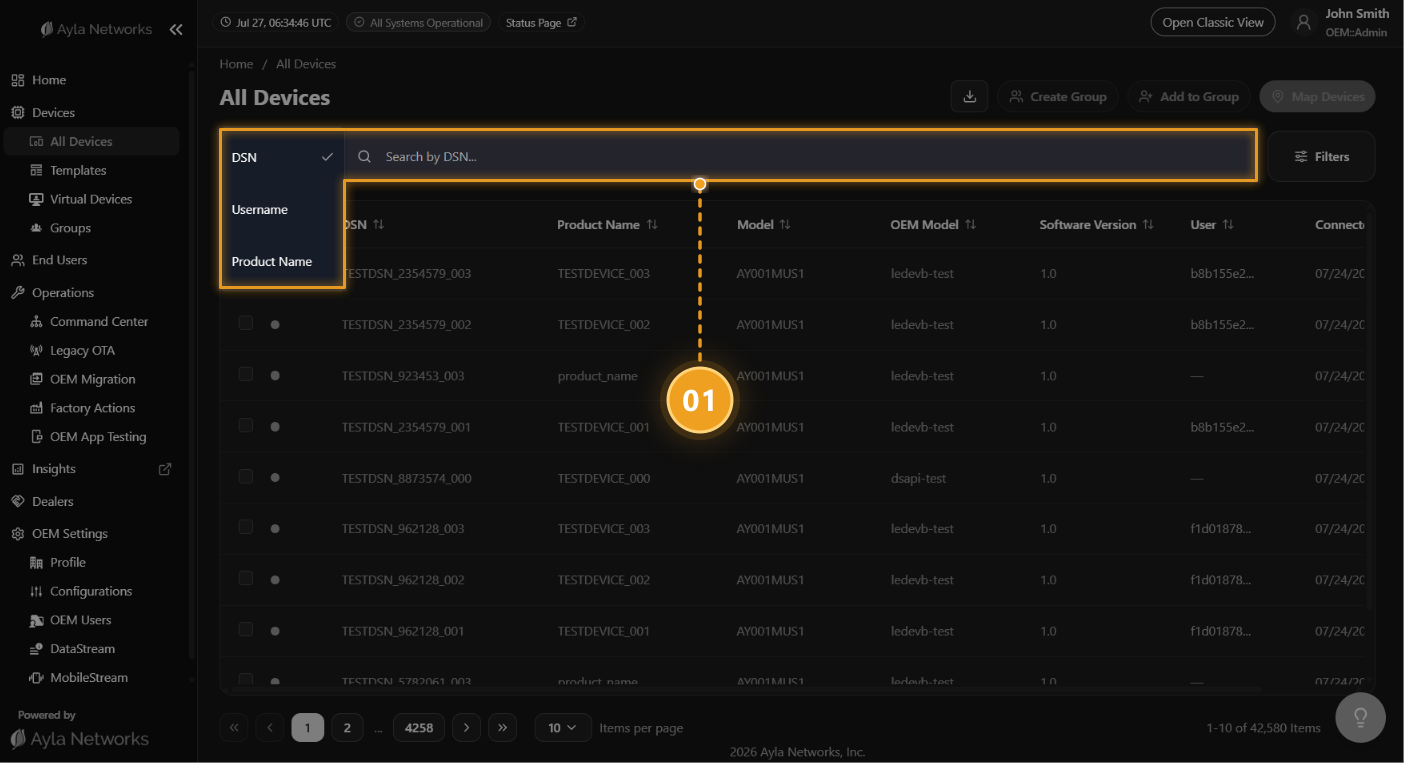
-
View Current Filters
Applied filters are displayed as tags beneath the search bar. Individual tags can be removed to clear the corresponding filter and automatically update the device list.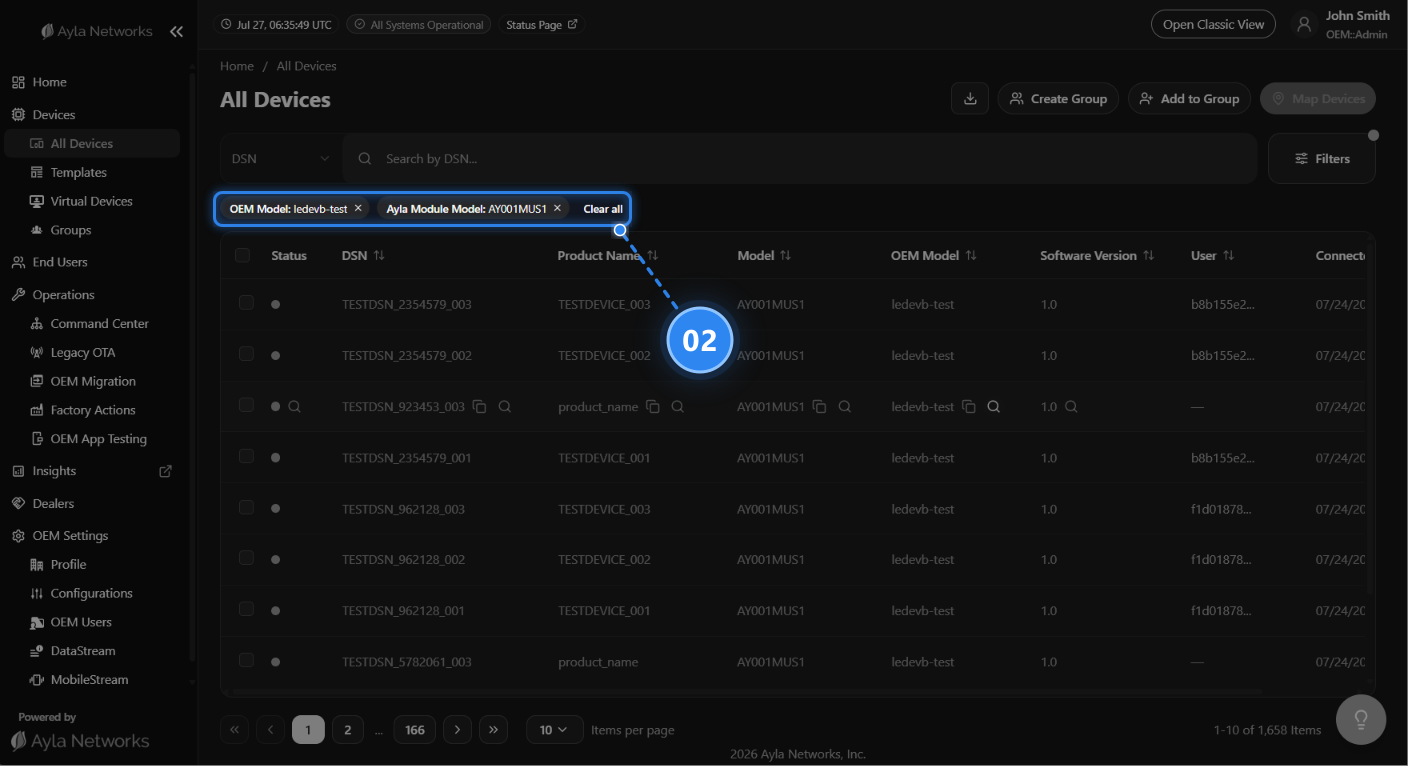
-
Export Current View
The displayed device list can be exported as a CSV or Excel file.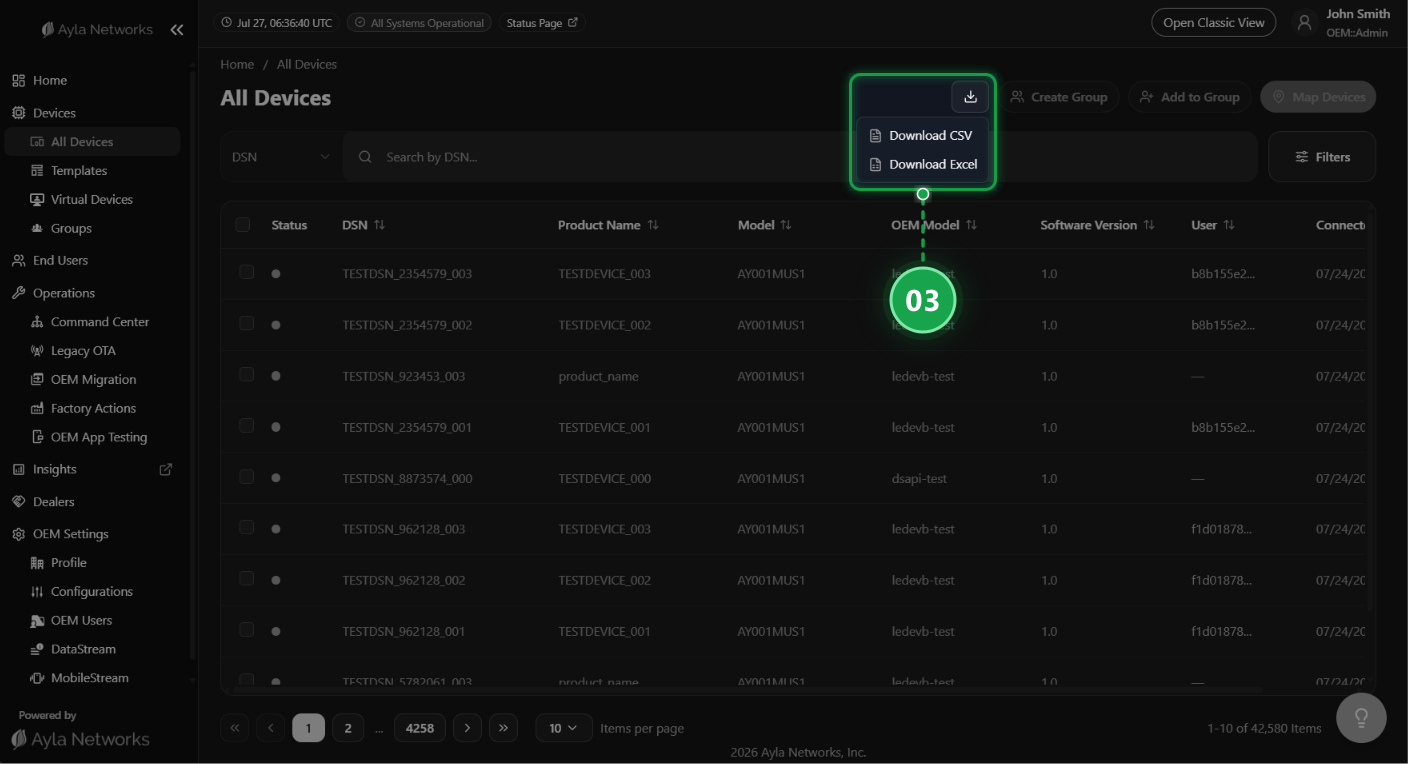
-
Single-Click Filter
Additional filters can be applied by selecting the icon next to any searchable attribute.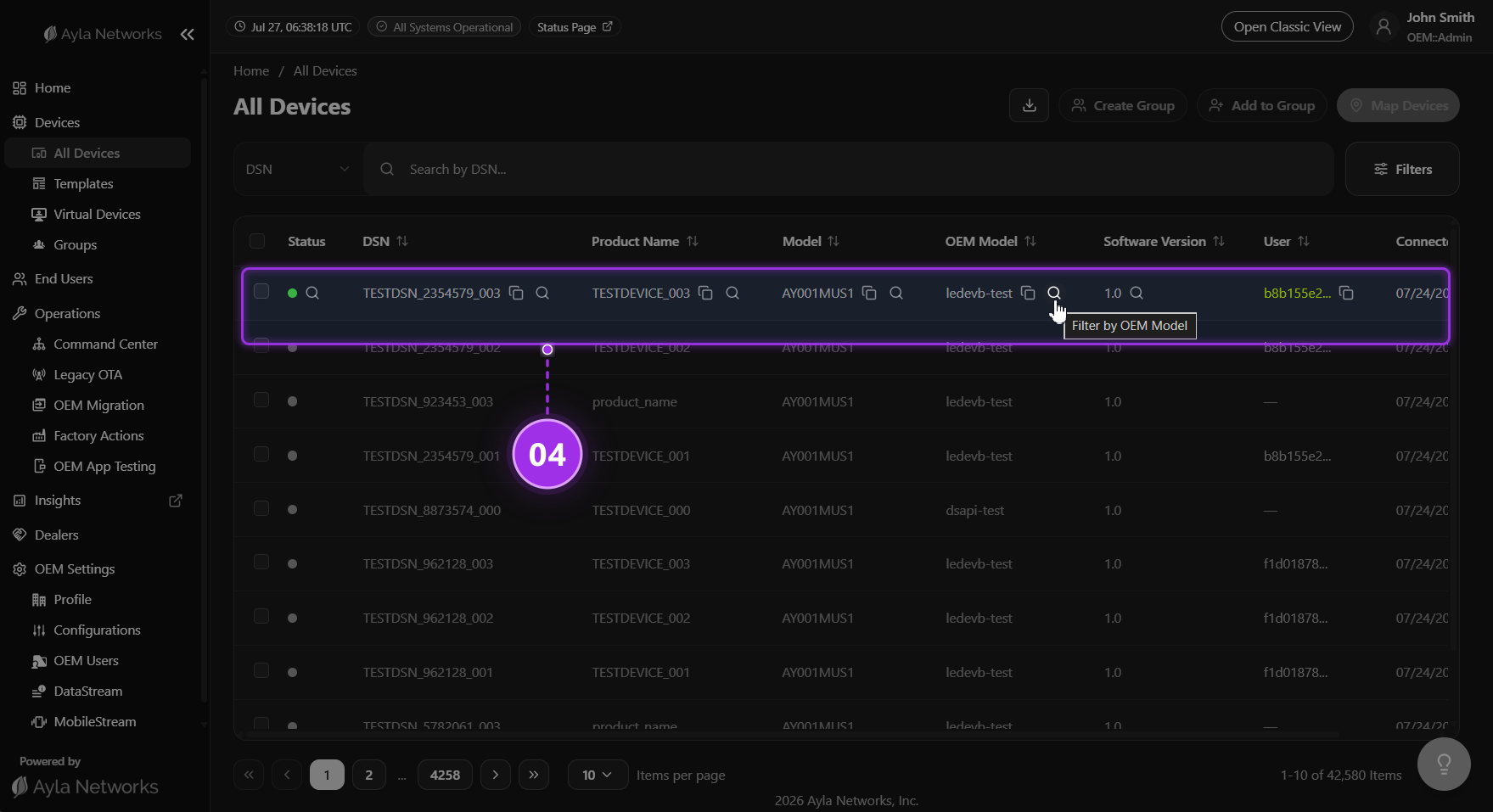
-
Replay Tutorial
The icon provides access to this tutorial at any time.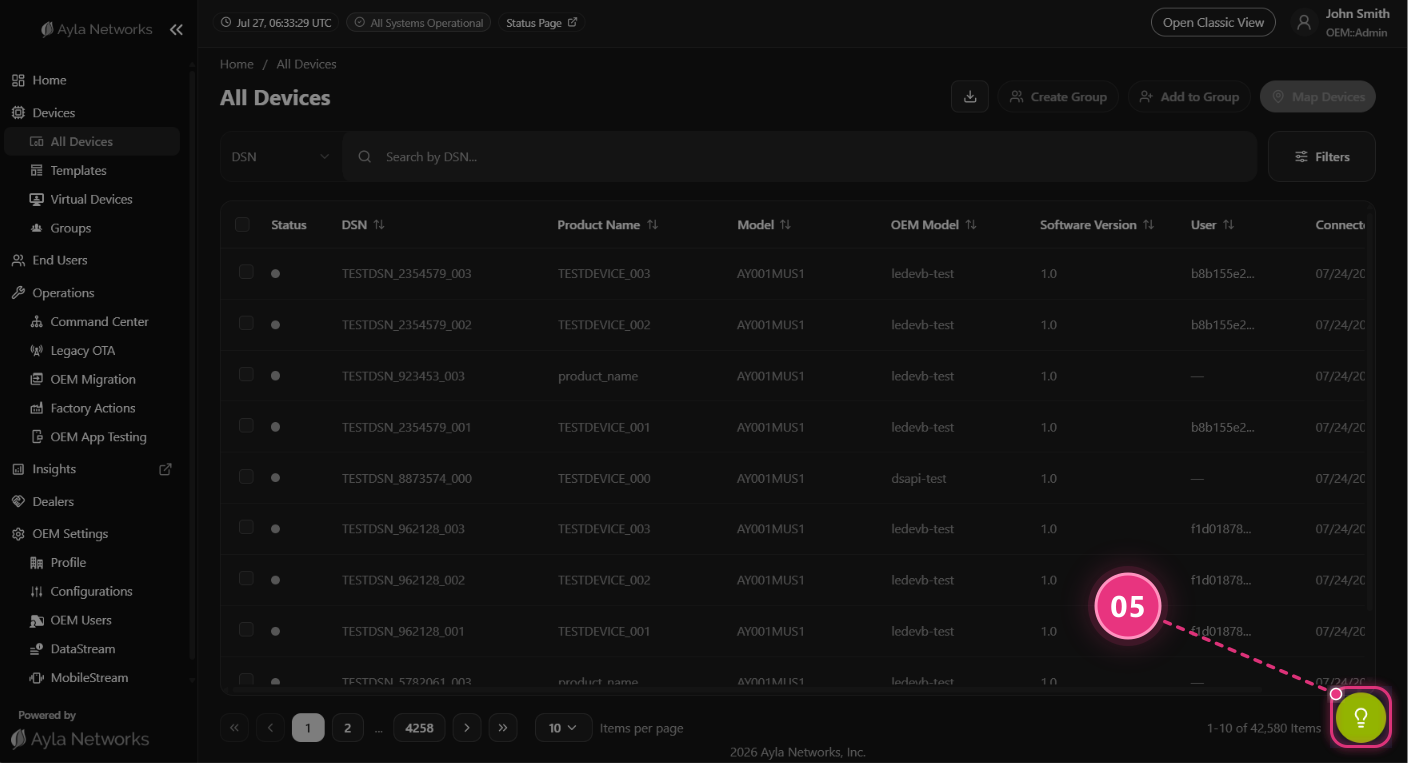
Updated 3 months ago